> For the complete documentation index, see [llms.txt](https://docs.dbnetsoft.com/dbnetsoft/llms.txt). Markdown versions of documentation pages are available by appending `.md` to page URLs; this page is available as [Markdown](https://docs.dbnetsoft.com/dbnetsoft/raceresultexchange/operation-modes/displayboard/displayboard-brands/fds-mled.md).

# FDS MLED

### Setup <a href="#setup" id="setup"></a>

FDS MLED displayboards provide multi-line, formattable canvas.

Templates can contain any information, but it is good practice to at least show what it is supposed to show (e.g. one can show blank in the clock template, but it makes sense to show a clock there).

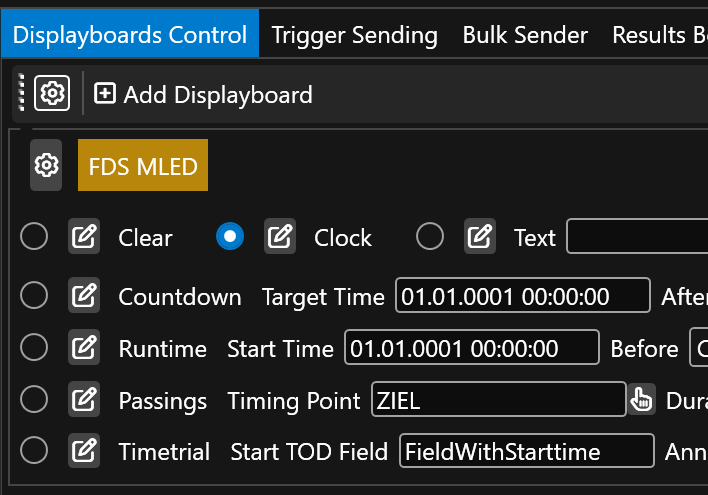
The operation modes can be switched to by selecting them:&#x20;

<figure><img src="https://dbnetsoft.github.io/RaceResultExchangeDocumentation/displayboards/switchingmodes.png" alt=""><figcaption></figcaption></figure>

### Templates <a href="#templates" id="templates"></a>

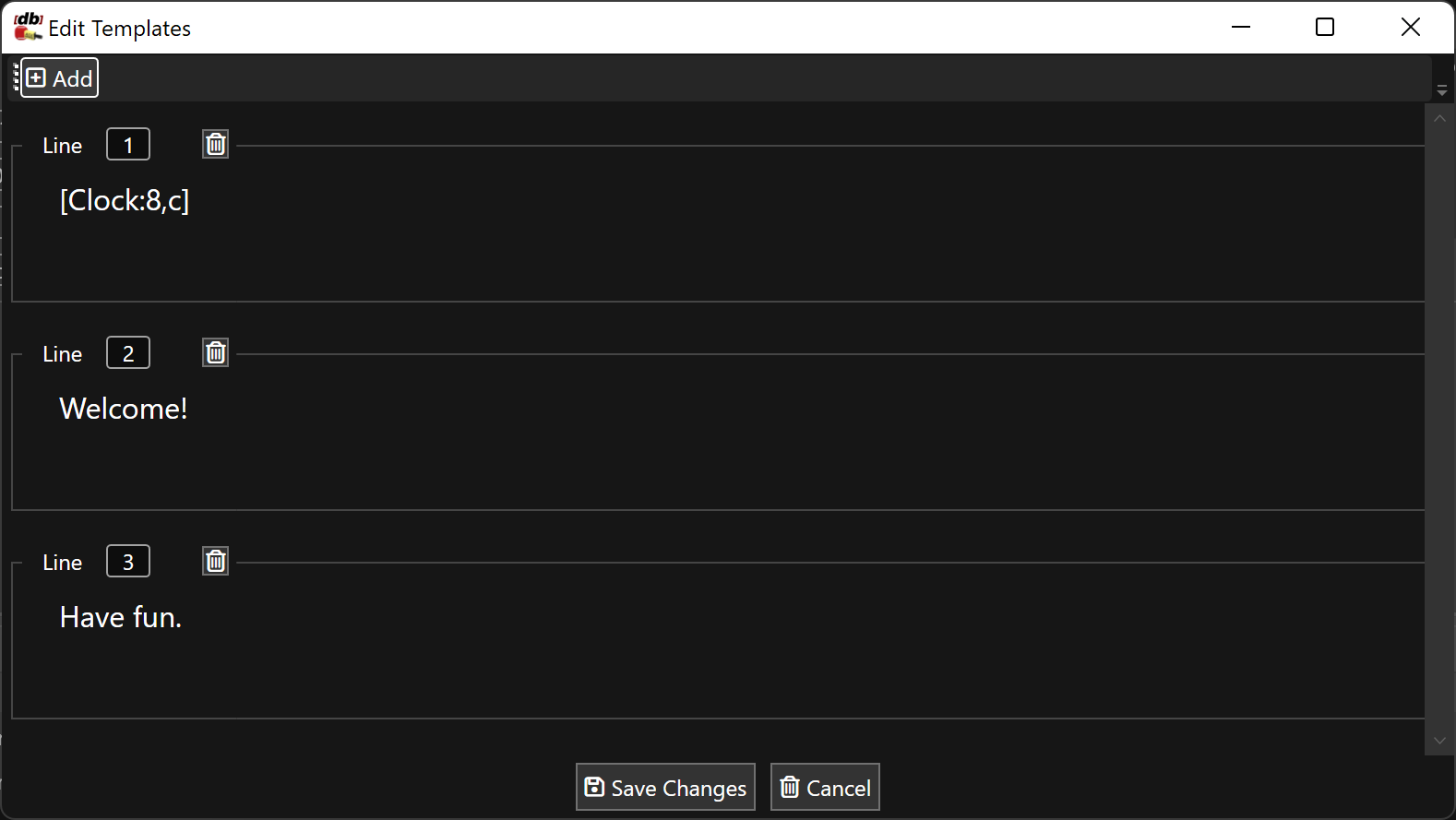
The templates for each mode can be edited by clicking on the Pen button next to each select box.

One can add as many rows are are supported by your MLED panel configuration. For instance if you have three panels across, then line 1 (A) will show 8 big characters, line 2(B) and line 3 (C) will show two smaller lines with each 16 characters. This can also be configuted in the FDS MLED Setup program. In RRExchage, you can have as many lines as you whish.

Each line composes of text. This text can either be plain text (e.g. `Welcome`) or contains content from a field (e.g. `[Bib]`) and fields can also be mixed with formatters (e.g. `{{ Clock | FormatRaceResult "hh:mm" }}`). Please see the [scripting](https://dbnetsoft.github.io/RaceResultExchangeDocumentation/displayboards/fdsmled/scripting/) for further details.
<figure><img src="https://dbnetsoft.github.io/RaceResultExchangeDocumentation/displayboards/edittemplate.png" alt=""><figcaption></figcaption></figure>


---

# Agent Instructions
This documentation is published with GitBook. GitBook is the documentation platform designed so that both humans and AI agents can read, navigate, and reason over technical content effectively. Learn more at gitbook.com.

## Querying This Documentation
If you need additional information that is not directly available in this page, you can query the documentation dynamically by asking a question.

Perform an HTTP GET request on the current page URL with the `ask` query parameter, and the optional `goal` query parameter:

```
GET https://docs.dbnetsoft.com/dbnetsoft/raceresultexchange/operation-modes/displayboard/displayboard-brands/fds-mled.md?ask=<question>&goal=<endgoal>
```

`ask` is the immediate question: it should be specific, self-contained, and written in natural language.
`goal` is optional and describes the broader end goal you are ultimately trying to accomplish on behalf of the user. GitBook uses it to tailor the answer towards what is most useful for that goal.

The response will contain a direct answer to the question and relevant excerpts and sources from the documentation.

Use this mechanism when the answer is not explicitly present in the current page, you need clarification or additional context, or you want to retrieve related documentation sections.
